> ## Documentation Index
> Fetch the complete documentation index at: https://browser-use.mingxi.ltd/llms.txt
> Use this file to discover all available pages before exploring further.
# 可观察性
> 跟踪 Browser Use 的代理执行步骤和浏览器会话
## 概述
Browser Use 与 [Laminar](https://lmnr.ai) 有原生集成 - 这是一个用于跟踪、评估和标记 AI 代理的开源平台。
在 [Laminar 文档](https://docs.lmnr.ai)中了解更多关于 Laminar 的信息。
Laminar 在跟踪浏览器代理方面表现出色,它为浏览器会话录制和代理执行步骤提供统一的可见性。
## 设置
要设置 Laminar,你需要安装 `lmnr` 包并设置 `LMNR_PROJECT_API_KEY` 环境变量。
要获取你的项目 API 密钥,你可以:
* 在 [Laminar Cloud](https://lmnr.ai) 上注册并从项目设置中获取密钥
* 或者启动本地 Laminar 实例并从设置页面获取密钥
```bash theme={null}
pip install 'lmnr[all]'
export LMNR_PROJECT_API_KEY=
```
## 使用
然后,你只需在项目顶部初始化 Laminar,Browser Use 和会话录制就会自动被跟踪。
```python {5-8} theme={null}
from langchain_openai import ChatOpenAI
from browser_use import Agent
import asyncio
from lmnr import Laminar
# 这行代码会自动检测 Browser Use 和你使用的任何浏览器(本地或远程)
Laminar.initialize(project_api_key="...") # 你也可以在这里传递项目 api 密钥
async def main():
agent = Agent(
task="打开 google,搜索 Laminar AI",
llm=ChatOpenAI(model="gpt-4o-mini"),
)
result = await agent.run()
print(result)
asyncio.run(main())
```
## 查看跟踪
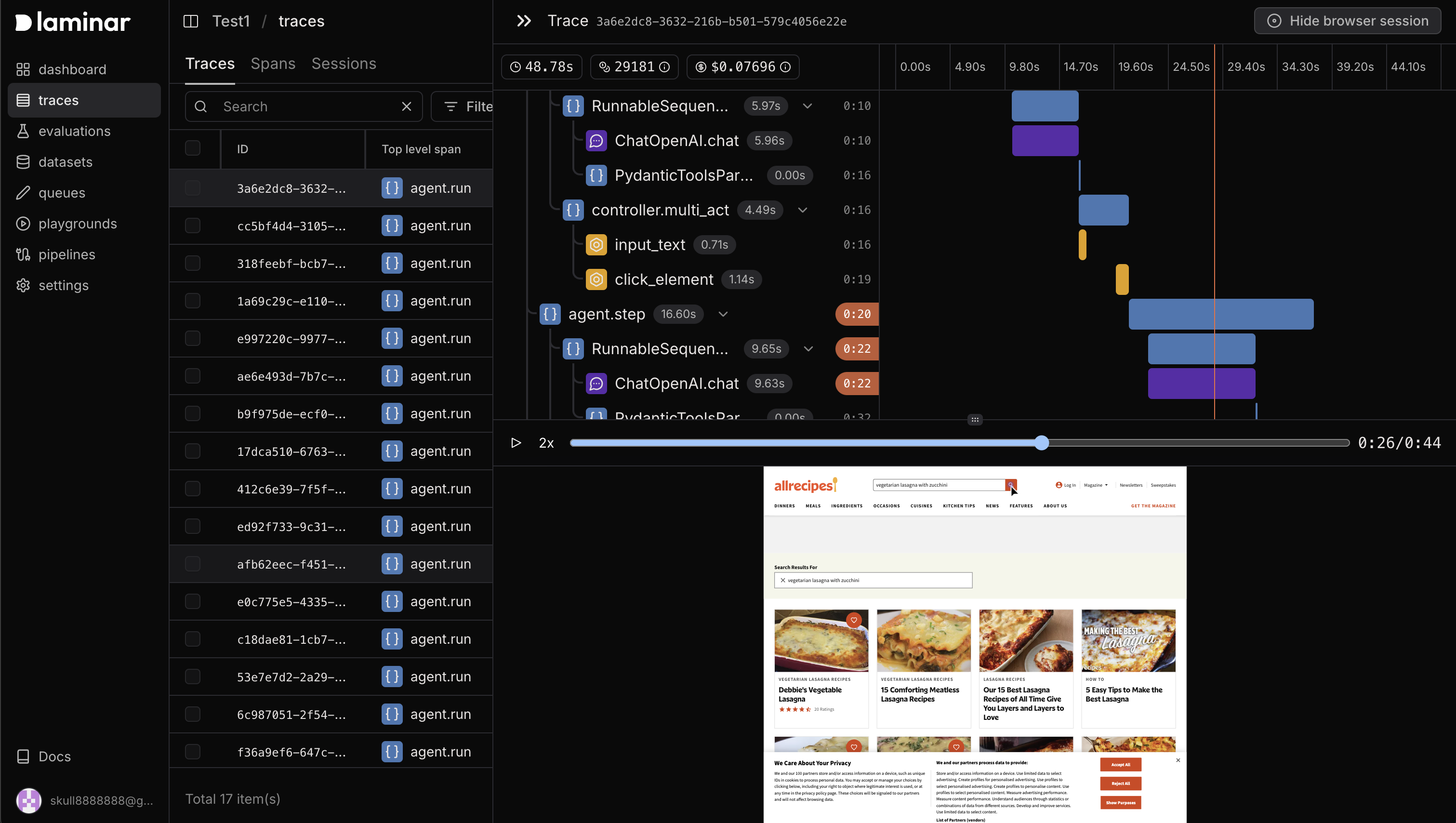
你可以通过转到项目中的跟踪标签页在 Laminar UI 中查看跟踪。
当你选择一个跟踪时,你可以同时看到浏览器会话录制和代理执行步骤。
浏览器会话的时间线与代理执行步骤同步,时间线高亮显示表示代理当前步骤与浏览器会话同步。
在跟踪视图中,你还可以看到代理的当前步骤、它使用的工具以及工具的输入和输出。工具在时间线中用黄色高亮显示。
 ## Laminar
要了解更多关于跟踪和评估你的浏览器代理的信息,请查看 [Laminar 文档](https://docs.lmnr.ai)。
## Laminar
要了解更多关于跟踪和评估你的浏览器代理的信息,请查看 [Laminar 文档](https://docs.lmnr.ai)。